
Quiver Photos Walkthrough
This guide shows the full onboarding flow with real app screens.
1) Download the App
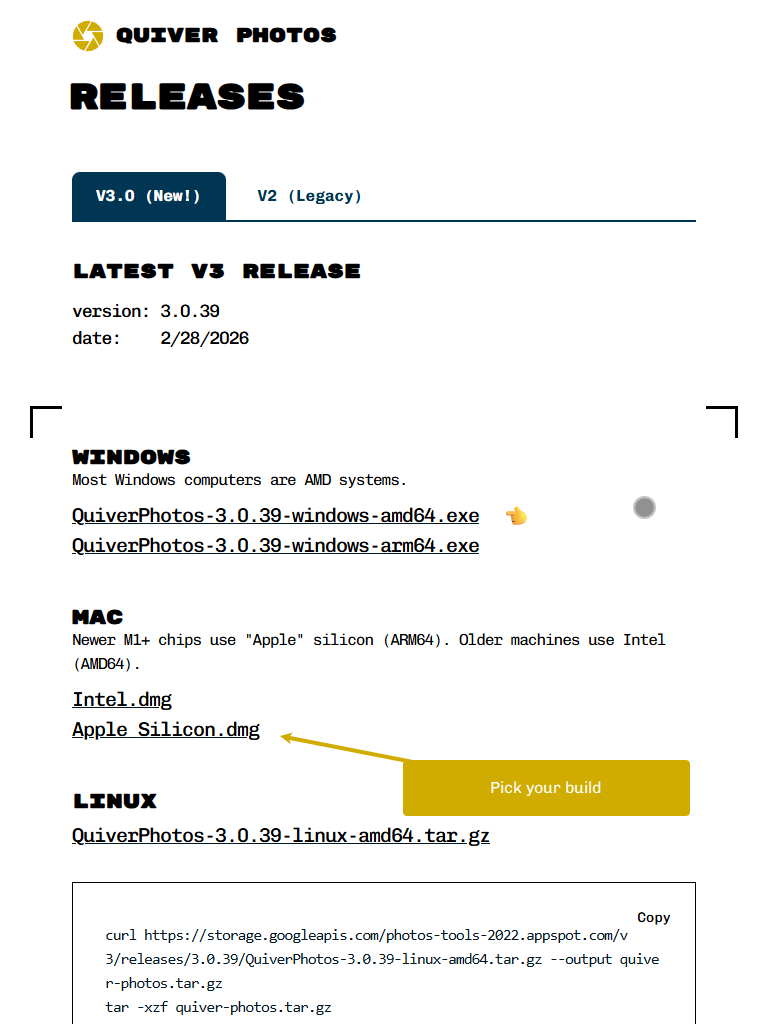
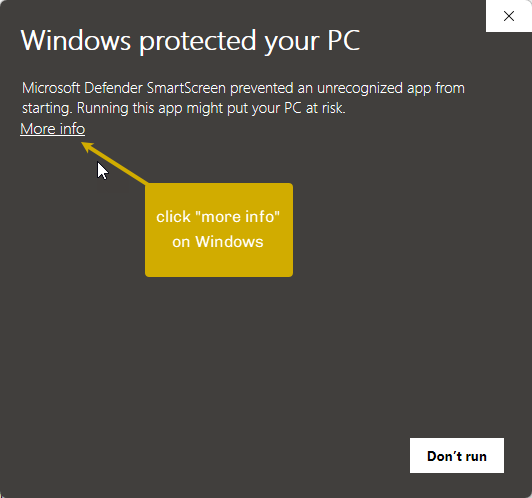
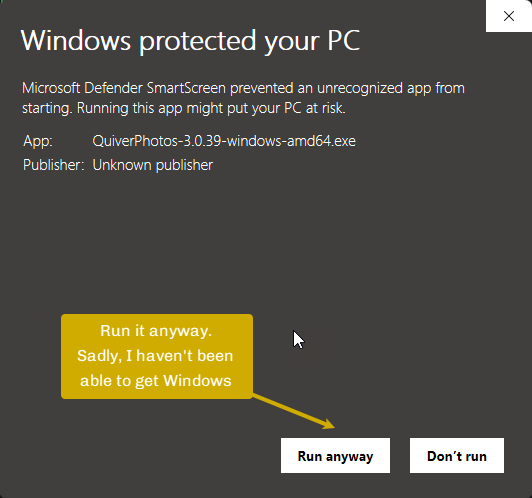
Start from the releases page and download the build for your operating system.
2) Launch Quiver
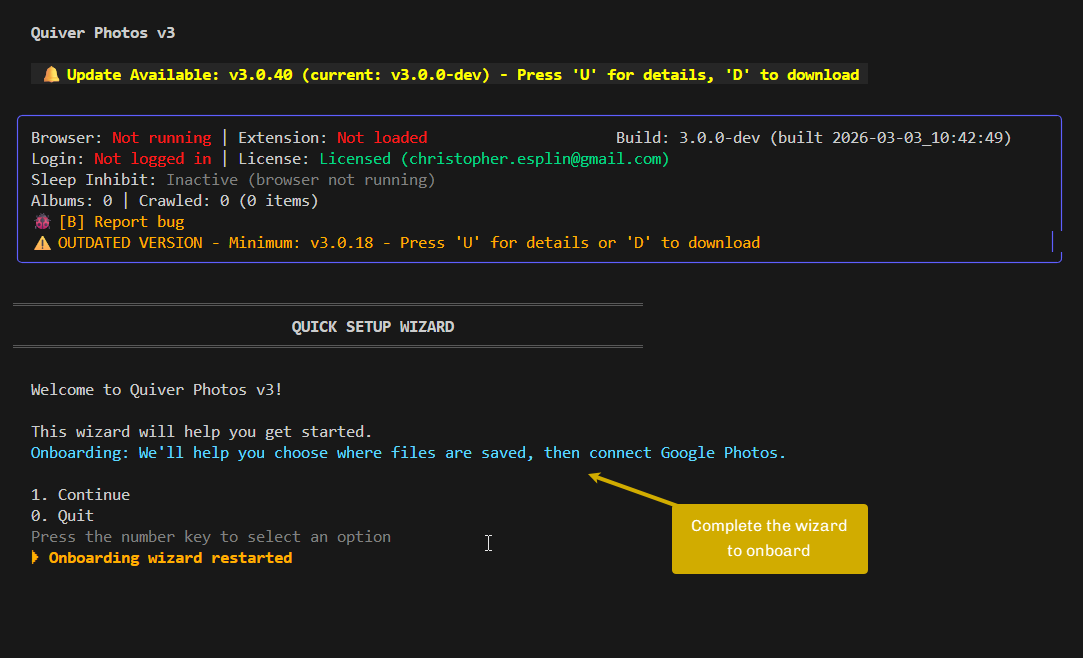
Open the app and continue through the first-run onboarding wizard.
3) Pick Your Downloads Folder
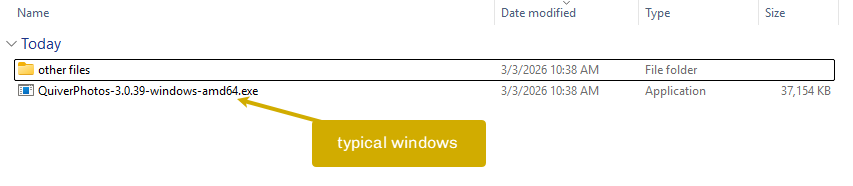
Choose the folder where Quiver should save downloaded media.
4) Connect Browser + Extension
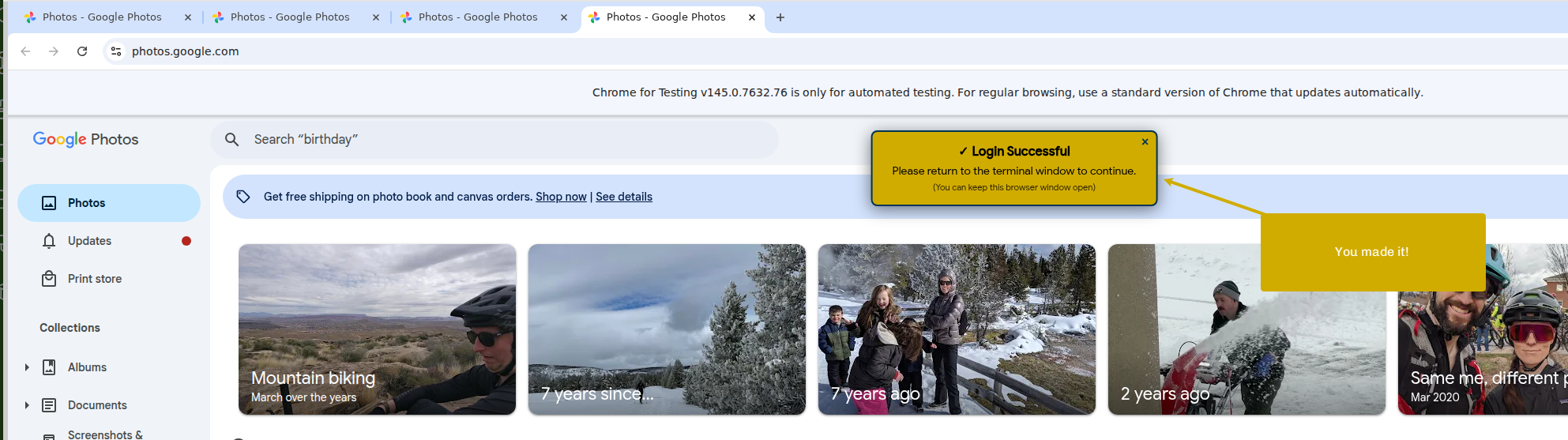
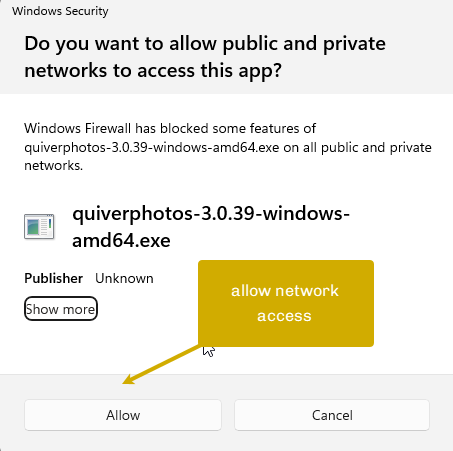
Quiver launches a managed browser session and waits for a successful extension/auth connection.

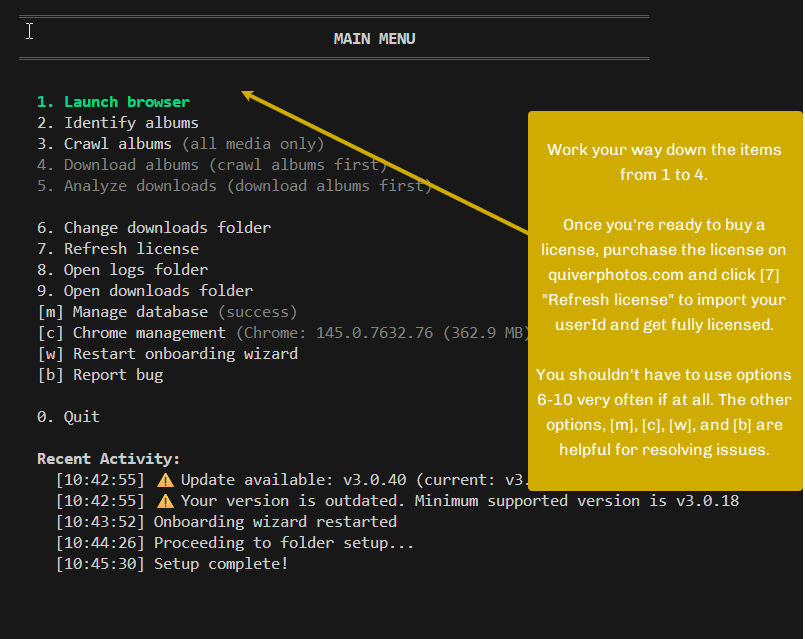
5) Start from the Main Menu
Once connected, use the main menu to run the workflow:
- Identify albums
- Crawl albums
- Download albums
6) Run the Launch/Download Process
These screens show the process progression.
If you want the newest text-first onboarding guide, see Quiver Photos Guide (V3).